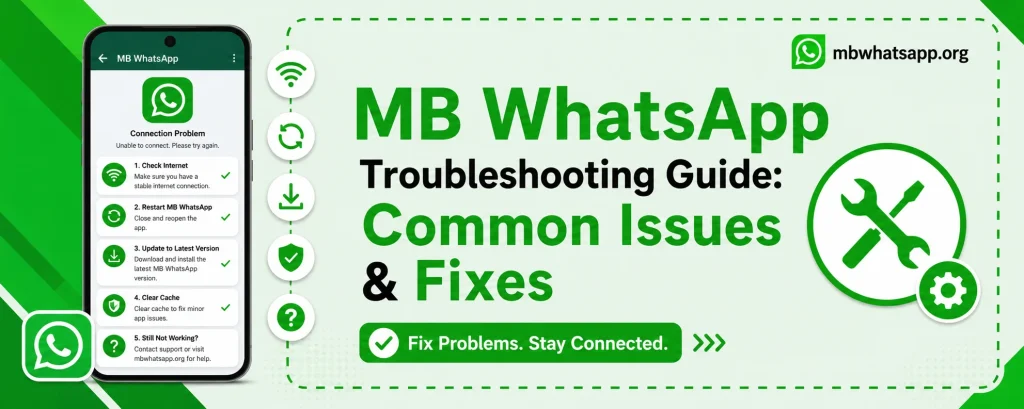
MB WhatsApp Troubleshooting Guide: Common Issues & Fixes
Like any software application, MB WhatsApp can sometimes encounter issues. Whether it is installation problems, crashes, connectivity issues, or feature malfunctions, most problems have straightforward solutions. This comprehensive troubleshooting guide from mbwhatsapp.org covers the most common MB WhatsApp issues and their fixes.
Quick Diagnosis: Identify Your Issue
| Symptom | Likely Cause | Solution Section |
| App won’t install | APK issue or settings | Installation Issues |
| App crashes on open | Compatibility or data corruption | Crash Fixes |
| Can’t verify number | Network or number issue | Verification Problems |
| Messages not sending | Connectivity or ban | Messaging Issues |
| Media not loading | Storage or permissions | Media Problems |
| Notifications not working | Android settings | Notification Fixes |
| Login loop | Data corruption | Login Issues |
Installation Issues
App Won’t Install
- Ensure Unknown Sources is enabled in your Android settings
- Check that you have at least 100 MB of free storage
- Re-download the APK from mbwhatsapp.org as the file may be corrupted
- Restart your device and try installing again
Installation Blocked by Play Protect
- When the Play Protect warning appears, tap Install Anyway
- If Google Play Protect repeatedly blocks installation, temporarily disable it in Play Store settings
- Re-enable Play Protect after successful installation
App Crash Fixes
If MB WhatsApp crashes immediately after opening or during use:
- Go to Android Settings > Apps > MB WhatsApp
- Tap Clear Cache and then Clear Data (note: clearing data will require re-verification)
- Restart the app
- If crashes persist, uninstall and reinstall using the latest APK from mbwhatsapp.org
- Ensure your Android version is 5.0 or higher
Verification Problems
OTP Not Received
- Ensure you have a working SIM card with SMS capability
- Check that your number is entered correctly with the country code
- Wait at least 5 minutes before requesting another OTP
- Try the voice call verification option instead of SMS
Verification Code Expired
- Verification codes are valid for a limited time — typically 10 minutes
- Request a new code and enter it quickly
- Ensure your device clock is set to the correct time zone
Messaging Issues
Messages Stuck on One Tick
- Check your internet connection
- Toggle airplane mode on and off to reset the connection
- Check if the recipient has blocked you
- Verify your account is not temporarily restricted
Messages Not Sending
- Confirm you are connected to internet via WiFi or mobile data
- Close and reopen MB WhatsApp
- Check whether the issue affects all contacts or just one
- If just one contact, the issue may be on their end
Media Not Loading
- Check your internet connection speed
- Ensure MB WhatsApp has permission to access storage in Android settings
- Go to MB WhatsApp Settings > Storage Usage and clear old media cache
- Check available storage — at least 200 MB of free space is recommended
Notification Problems
- Go to Android Settings > Apps > MB WhatsApp > Notifications
- Ensure all notification categories are enabled
- Check that MB WhatsApp is excluded from battery optimization
- Go to Battery settings and add MB WhatsApp to the do not optimize list
- Disable any third-party battery management apps that may be restricting MB WhatsApp
Account Temporarily Banned
- Do not panic if you see a temporary ban message
- Wait for the ban duration to expire as indicated in the message
- After the ban lifts, update to the latest MB WhatsApp from mbwhatsapp.org
- Review and enable all anti-ban settings before resuming use
Frequently Asked Questions
Q1: Why does MB WhatsApp keep logging me out?
Repeated logouts can be caused by a corrupted database or an account security flag. Try clearing app data, reinstalling the latest version from mbwhatsapp.org, and re-verifying your number.
Q2: Why are my themes not applying correctly?
Theme issues often result from using themes designed for an older version. Download current themes from within MB WhatsApp’s built-in theme store or check mbwhatsapp.org for theme updates.
Q3: MB WhatsApp is consuming too much battery. What should I do?
Go to Android battery settings and add MB WhatsApp to the unrestricted list. Also review your notification settings and media auto-download rules to reduce background activity.
Q4: My chats disappeared after an update. How do I recover them?
This usually happens when MB WhatsApp is installed fresh instead of as an update. If you have a backup, open MB WhatsApp, verify your number, and restore from the backup when prompted. This is why mbwhatsapp.org always recommends creating a backup before updating.
Q5: How do I report a bug or issue in MB WhatsApp?
Bug reports and feedback can be submitted through the community forums and feedback channels referenced on mbwhatsapp.org. Providing your device model, Android version, and MB WhatsApp version number helps the developers reproduce and fix issues faster.
Conclusion
Most MB WhatsApp v2.8.1 issues are straightforward to resolve with the right approach. Always start by ensuring you have the latest version from mbwhatsapp.org, as many bugs are fixed in subsequent updates. Keep regular backups so that even if a problem requires reinstallation, your data remains safe.