How to Customize Themes, Fonts, and Icons in MB WhatsApp
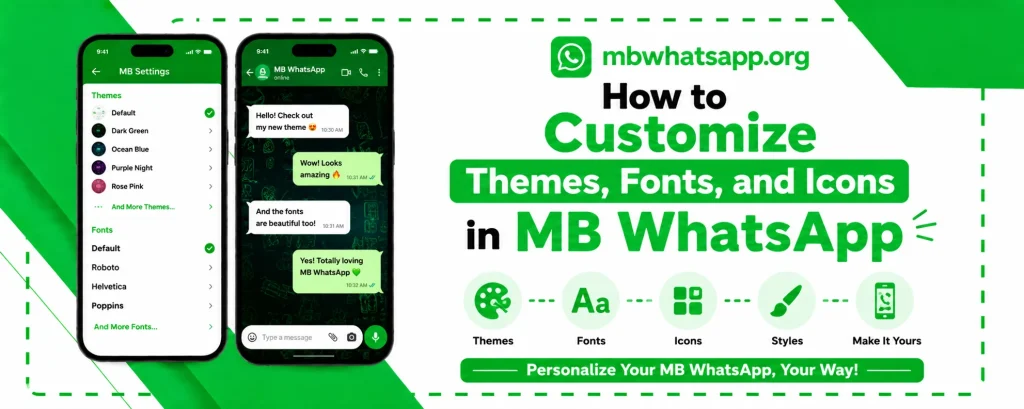
One of the most popular reasons users choose MB WhatsApp is its extraordinary customization capability. From choosing a complete theme that transforms the entire app appearance to picking individual font styles and icon packs, MB WhatsApp puts you in total creative control. This guide from mbwhatsapp.org walks you through every customization option available in 2026.
The MB WhatsApp Customization Ecosystem
MB WhatsApp’s customization is organized into three main categories:
| Category | What It Covers | Where to Find |
| Themes | Complete visual overhaul of the app | MB WA Settings > Themes |
| Fonts | Text style throughout the app | MB WA Settings > Chats > Font Style |
| Icons | App icons and in-chat icon sets | MB WA Settings > Appearance |
How to Apply Themes
Themes in MB WhatsApp completely change the visual appearance of the entire application. Here is how to browse and apply them:
- Open MB WhatsApp and tap the three-dot menu
- Go to MB WhatsApp Settings
- Tap Themes to open the built-in theme store
- Browse through the extensive collection organized by categories
- Tap Preview on any theme to see how it looks before applying
- Tap Apply to activate the selected theme
The theme library includes dark themes, light themes, gradient themes, material design themes, and animated themes. New themes are added regularly and can also be downloaded from community theme packs shared on mbwhatsapp.org.
Types of Themes Available
- Dark Mode Themes: Rich dark backgrounds that reduce eye strain
- AMOLED Themes: Pure black backgrounds that save battery on OLED screens
- Gradient Themes: Colorful gradient effects across the interface
- Minimal Themes: Clean, clutter-free designs for a professional look
- Animated Themes: Dynamic moving elements in backgrounds and interface
- Seasonal Themes: Holiday and event-specific designs
- Custom User Themes: Created and shared by the MB WhatsApp community
How to Change Fonts
MB WhatsApp offers an extensive font library that changes the text style throughout the entire app:
- Go to MB WhatsApp Settings
- Select Chats and then Chat Font Style
- Browse through the available font options
- Tap any font to preview how it will look
- Select Apply to activate the chosen font
Font changes apply globally across the app — chat list, messages, menus, and settings all reflect the chosen font. The font library includes serif, sans-serif, monospace, calligraphic, and novelty style fonts.
Font Size and Weight Customization
Beyond just the font style, MB WhatsApp allows adjustment of font size and weight:
- Go to Chats settings in MB WhatsApp
- Find Font Size to adjust the base text size
- Adjust in increments from the smallest readable size to very large display text
- Some fonts also support bold weight options for better readability
How to Customize Icons
Icon customization in MB WhatsApp works on two levels:
App Icon Customization
You can change the MB WhatsApp launcher icon that appears on your home screen:
- Go to MB WhatsApp Settings and select Appearance
- Find Icon Style or App Icon option
- Choose from the available icon designs
- Apply your chosen icon to update the home screen appearance
In-Chat Icon Customization
Icons within the app itself — such as the microphone, attachment, send button, and emoji icons — can also be restyled:
- Go to Appearance settings in MB WhatsApp
- Look for Chat Icons or UI Elements
- Select from available icon packs
- Preview and apply your preferred icon set
Creating Custom Themes
For advanced users, MB WhatsApp includes a theme editor that allows you to create entirely custom themes:
- Access the theme editor from the Themes section in MB WhatsApp Settings
- Choose a base theme to start from
- Customize individual color values using hex color codes
- Adjust background images, transparency levels, and accent colors
- Save and name your custom theme
- Share your theme file with others through the MB WhatsApp community on mbwhatsapp.org
Chat Bubble Customization
The chat bubbles — the containers that hold your messages — offer their own customization layer:
- Change bubble shape: rounded, square, or minimal
- Adjust bubble color independently for sent and received messages
- Modify bubble tail style and direction
- Set bubble transparency level
- Add border or shadow effects to bubbles
Wallpaper and Background Options
The chat background has extensive customization options beyond simple color selection:
- Solid colors with custom hex values
- Gradient backgrounds with multiple color stops
- Pattern overlays on top of colors
- Custom images from your gallery
- Animated video backgrounds (available in latest version)
- Per-contact custom wallpapers as described in our hidden features guide
Frequently Asked Questions
Q1: How many themes are available in MB WhatsApp?
MB WhatsApp’s built-in theme library contains thousands of themes, and the community actively adds new ones regularly. The theme store in MB WhatsApp is continuously growing, and mbwhatsapp.org also shares notable new theme packs.
Q2: Can I use fonts from my phone in MB WhatsApp?
MB WhatsApp’s font library is self-contained. You cannot directly import arbitrary fonts from your phone, but the built-in library is extensive enough to cover most style preferences.
Q3: Will changing themes affect app performance?
Standard themes have no noticeable performance impact. Animated themes may use slightly more battery on older devices due to the continuous animation rendering. On modern hardware, even animated themes run smoothly.
Q4: Can I share a custom theme I created with other MB WhatsApp users?
Yes. Custom themes can be exported as theme files and shared with other MB WhatsApp users. They can import your theme file directly into their MB WhatsApp. You can also share through the community on mbwhatsapp.org.
Q5: Do themes and fonts reset when I update MB WhatsApp?
In most cases, your selected theme and font settings are preserved during updates. However, as a precaution, note your current theme and font selections before updating so you can quickly reapply them if needed.
Conclusion
MB WhatsApp’s customization options are unmatched in the messaging app world. From thousands of themes to custom fonts, icon packs, and a built-in theme editor, you can make MB WhatsApp 2026 look and feel exactly the way you want. Download the latest version from mbwhatsapp.org to access the full range of customization tools and express your personal style through your messaging app.