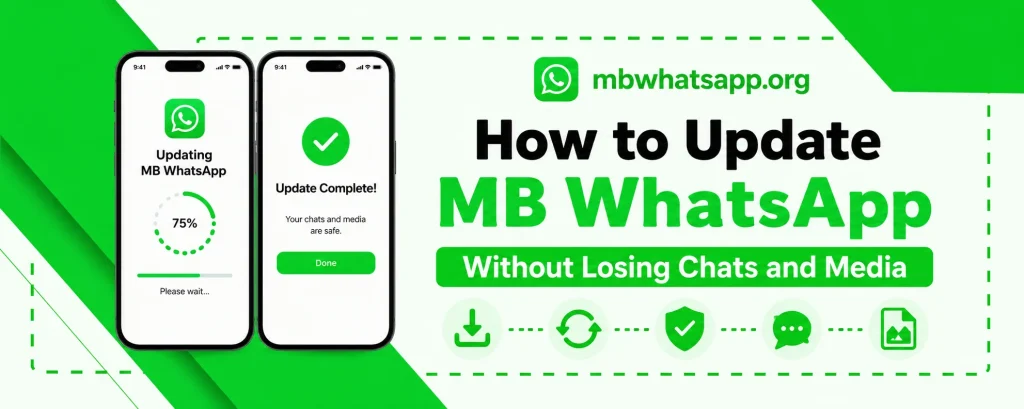
How to Update MB WhatsApp Without Losing Chats and Media
Keeping MB WhatsApp updated is essential for accessing new features, maintaining anti-ban protection, and ensuring the app runs smoothly. However, many users are concerned about losing their chat history and media files during the update process. This guide from mbwhatsapp.org provides a complete, step-by-step method to update MB WhatsApp APK safely while preserving all your data.
Why Updating MB WhatsApp Matters
Each new version of MB WhatsApp from mbwhatsapp.org includes important improvements. Updates typically address security vulnerabilities, introduce new privacy features, improve compatibility with the latest Android versions, and update the anti-ban engine. Skipping updates for extended periods can lead to compatibility issues and increase the risk of account restrictions.
What Happens to Your Data During an Update
Many users fear that updating MB WhatsApp will erase their chats and media. In reality, an in-place update over an existing installation preserves all data by default. Your messages, images, videos, and documents are stored in a separate folder on your device’s internal storage and are not touched during the update process.
Before You Update: Backup Your Data
Even though data is generally preserved, taking a backup before updating is always a smart practice. Here is how to do it:
- Open MB WhatsApp on your device
- Tap the three-dot menu and go to Settings
- Select Chats and then Chat Backup
- Tap Back Up Now to create a local backup
- Optionally enable Google Drive backup for an additional copy
Finding Your MB WhatsApp Data Folder
MB WhatsApp stores its data in a specific folder on your device. Knowing this location helps you manually verify your backup:
| Storage Type | Folder Path |
| Internal Storage | /Internal Storage/MB WhatsApp/ |
| Media Files | /Internal Storage/MB WhatsApp/Media/ |
| Database Files | /Internal Storage/MB WhatsApp/Databases/ |
Step-by-Step Update Process
Method 1: Direct Update (Recommended)
This is the simplest method and preserves all data automatically:
- Visit mbwhatsapp.org from your phone’s browser
- Download the latest MB WhatsApp APK
- Once downloaded, locate the file in your Downloads folder
- Tap the APK to begin installation
- You will see an option to Update rather than Install fresh — tap it
- The update will complete in seconds
- Open MB WhatsApp and verify all your chats are intact
Method 2: Manual Backup and Fresh Install
If you experience issues with the direct update method, use this approach:
- First, perform a full chat backup as described above
- Navigate to your file manager and copy the entire MB WhatsApp folder to a safe location
- Uninstall the old version of MB WhatsApp
- Download and install the new version from mbwhatsapp.org
- During initial setup, restore the backup when prompted
- After setup is complete, verify all chats and media are restored
Restoring Media After Update
If media files do not appear immediately after updating, you may need to rescan your media library:
- Open the MB WhatsApp folder in your file manager
- Look for a .nomedia file and delete it if present
- Restart your device or refresh your gallery
- All media should now be visible
Common Update Problems and Fixes
| Problem | Solution |
| Update not installing | Ensure enough storage space is available |
| Chats missing after update | Restore from the backup created before updating |
| Media not showing | Delete .nomedia file from the MB WhatsApp folder |
| App crashing post update | Clear app cache in Android settings then reopen |
| Old version still showing | Fully uninstall and reinstall from mbwhatsapp.org |
Frequently Asked Questions
Q1: Will updating MB WhatsApp delete my message history?
No. When you update MB WhatsApp by installing the new APK over the existing version, your chat history and media files are completely preserved. The update process does not touch the data folder.
Q2: How do I know if a new version is available?
You can check mbwhatsapp.org periodically for the latest version announcements. The homepage always displays the most recent version number and what has changed.
Q3: Should I uninstall the old version before installing a new one?
No, you should install the new version directly over the existing installation. This preserves your data. Uninstalling first and then installing fresh will require you to restore from a backup.
Q4: Can I keep an older version of MB WhatsApp if I like it better?
Yes, you can stay on an older version, but it is not recommended. Older versions may lack anti-ban updates, making your account more vulnerable. Check mbwhatsapp.org for old version archives if needed.
Q5: How long does the update process take?
The update process typically takes under two minutes from download to completion, assuming a stable internet connection for the download portion.
Conclusion
Updating MB WhatsApp without losing your chats and media is a straightforward process when you follow the right steps. Always create a backup before updating as a precaution, and use the direct update method by installing the new APK from mbwhatsapp.org over your existing installation. This ensures a smooth update with all your data fully preserved.