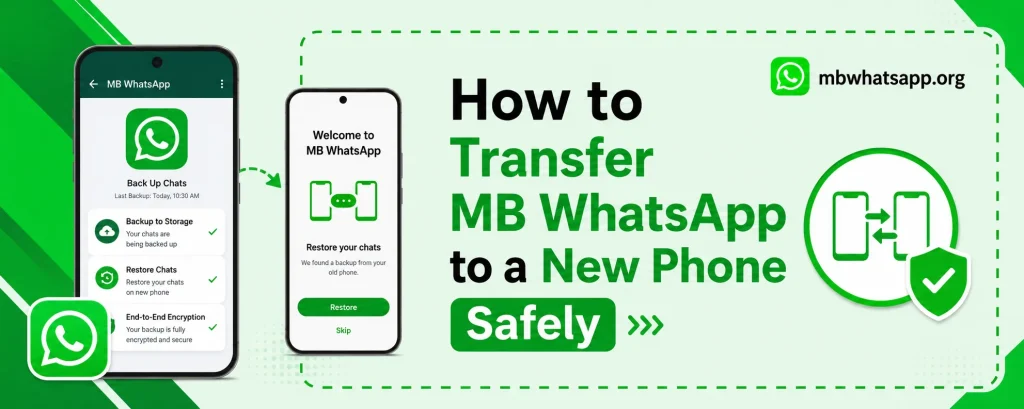
How to Transfer MB WhatsApp to a New Phone Safely
Switching to a new phone is always an exciting experience, but transferring your MB WhatsApp data safely requires careful planning. Unlike the official WhatsApp which has integrated transfer tools, MB WhatsApp users need to follow a slightly different process. This guide from mbwhatsapp.org provides the complete, step-by-step process for transferring MB WhatsApp to a new phone without losing any data.
What Gets Transferred
| Data Type | Transfer Possible? | Method |
| Text messages | Yes | Database backup and restore |
| Images and videos | Yes | Folder transfer |
| Voice notes | Yes | Folder transfer |
| Documents | Yes | Folder transfer |
| Stickers | Yes | Folder transfer |
| Settings and themes | Partial | Manual configuration |
| Group memberships | Yes | Auto-restored via phone number |
Before You Transfer: Preparation Checklist
- Ensure the new phone has Android 5.0 or higher
- Create a fresh backup on the old phone
- Confirm the backup was successful
- Ensure you have access to the same phone number on the new device
- Download the latest MB WhatsApp APK from mbwhatsapp.org on the new phone
- Have enough storage on the new device for both the app and all media
Method 1: Transfer via Google Drive (Easiest)
On Your Old Phone
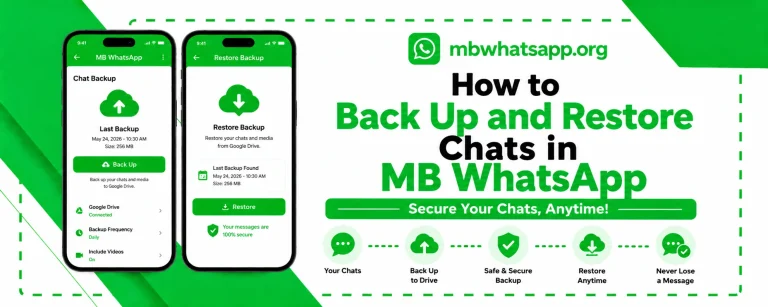
- Open MB WhatsApp and go to Settings > Chats > Chat Backup
- Connect your Google account and tap Back Up to Google Drive
- Wait for the backup to complete and confirm it shows a recent timestamp
On Your New Phone
- Install MB WhatsApp from mbwhatsapp.org
- Verify the same phone number used on the old device
- When prompted for restore, select Google Drive and sign into the same account
- Select the backup and tap Restore
- After setup, all chats and media will be available
Method 2: Transfer via USB Cable (For Large Data)
If your data is very large or you do not want to use cloud storage, USB transfer is the most reliable method:
On Your Old Phone
- Create a local backup in MB WhatsApp settings
- Connect your old phone to a computer via USB
- Navigate to the MB WhatsApp folder in internal storage
- Copy the entire folder to your computer
On Your New Phone
- Connect the new phone to the computer
- Copy the MB WhatsApp folder from the computer to the new phone’s internal storage
- Install MB WhatsApp from mbwhatsapp.org on the new device
- Verify your phone number and restore from the local backup when prompted
Method 3: Transfer via SD Card
If both phones have SD card slots, this is a quick and simple alternative:
- Copy the MB WhatsApp folder from internal storage to the SD card
- Move the SD card to the new phone
- Copy the MB WhatsApp folder from the SD card to the new phone’s internal storage
- Install and set up MB WhatsApp from mbwhatsapp.org as usual
After Transfer: Verification Checklist
- Open MB WhatsApp and scroll through your chat list
- Verify that recent messages are visible
- Check a conversation with media to confirm images and videos loaded
- Test sending and receiving a message
- Verify that your settings and themes are applied
- Set up backups on the new device immediately
Frequently Asked Questions
Q1: Will all my chats be available immediately after transfer?
Yes, once the restore process completes, all your chat messages should be immediately accessible. Media files may take a few moments to load as the app indexes them.
Q2: Do I need to keep both phones active during the transfer?
No. The transfer can be done even after the old phone is wiped, as long as you have a backup stored somewhere accessible — Google Drive, computer, or SD card.
Q3: What if my new phone does not recognize the MB WhatsApp backup?
Ensure the backup folder is placed in the correct location: /Internal Storage/MB WhatsApp/. The folder name must match exactly. Then open MB WhatsApp and the restore option should appear.
Q4: Can I transfer MB WhatsApp data to a different phone number?
MB WhatsApp data is tied to a phone number. Transferring to a new phone with the same number works seamlessly. Transferring to a different number would lose contact associations.
Q5: Should I download the same version of MB WhatsApp on my new phone?
You should download the latest version from mbwhatsapp.org. It can read backups created by older versions, so a version mismatch is generally not a problem.
Conclusion
Transferring MB WhatsApp to a new phone is a smooth process when approached methodically. Choose the transfer method that best suits your situation — Google Drive for convenience, USB for speed with large data, or SD card for simplicity. Download the latest MB WhatsApp from mbwhatsapp.org on your new phone and enjoy all your chats without interruption.