How to Back Up and Restore Chats in MB WhatsApp
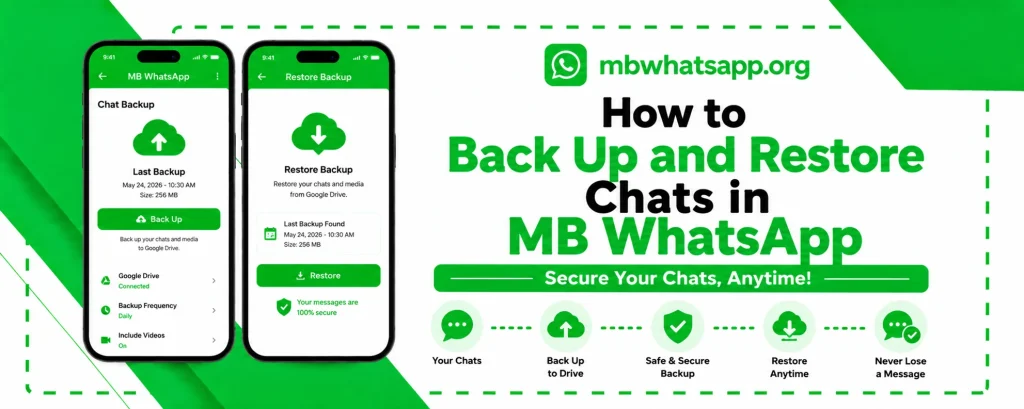
Your chat history contains important conversations, memories, and valuable information. Protecting this data through regular backups is essential. MB WhatsApp offers flexible backup and restore options, including local storage and Google Drive integration. This complete guide from mbwhatsapp.org covers everything you need to know about backing up and restoring your MB WhatsApp chats.
Why Regular Backups Matter
Without a backup, any of the following situations could result in permanent data loss:
- Accidentally uninstalling MB WhatsApp
- Phone lost, stolen, or damaged
- Factory resetting your device
- Switching to a new phone
- App errors or corruption
Backup Options Available in MB WhatsApp
| Backup Type | Location | Pros | Cons |
| Local Backup | Phone internal storage | Fast, no internet needed | Lost if phone is damaged |
| Google Drive Backup | Cloud storage | Accessible anywhere | Requires internet and Google account |
| Manual File Backup | Any storage location | Most control | Requires manual management |
How to Create a Local Backup
- Open MB WhatsApp and tap the three-dot menu
- Go to Settings and then Chats
- Select Chat Backup
- Tap Back Up Now to create an immediate backup
- You can also enable automatic backup intervals: Daily, Weekly, or Monthly
Local backups are stored at /Internal Storage/MB WhatsApp/Databases/ and are named msgstore.db.crypt12 or similar.
How to Set Up Google Drive Backup
- In Chat Backup settings, look for the Google Drive option
- Select your Google account from the list
- Choose your preferred backup frequency
- Select the network preference: WiFi only is recommended to avoid mobile data usage
- Tap Back Up to Google Drive to initiate the first cloud backup
Note: MB WhatsApp may use a separate backup folder from official WhatsApp. Ensure you are monitoring the correct account in Google Drive.
How to Restore from a Local Backup
If you need to restore your chats from a local backup:
- Before installing or reinstalling MB WhatsApp, confirm the backup file exists at /Internal Storage/MB WhatsApp/Databases/
- Install MB WhatsApp from mbwhatsapp.org
- Verify your phone number during setup
- When prompted to restore from backup, select your most recent backup file
- Tap Restore and wait for the process to complete
- After setup, all your chats should be restored
How to Restore from Google Drive Backup
- Install MB WhatsApp from mbwhatsapp.org on your device
- Verify your phone number
- When the restore prompt appears, select Restore from Google Drive
- Sign in with the Google account used for the backup
- Select the backup to restore and tap Restore
- Wait for the download and restoration to complete
Manually Backing Up the MB WhatsApp Folder
For an extra layer of security, you can manually copy the entire MB WhatsApp folder:
- Open your file manager
- Navigate to Internal Storage
- Find the MB WhatsApp folder
- Long press and select Copy
- Paste it to an external SD card, USB drive, or cloud storage of your choice
This manual backup includes all media files, databases, and voice notes, providing a complete snapshot of your MB WhatsApp data.
Frequently Asked Questions
Q1: Can I restore an MB WhatsApp backup to the official WhatsApp?
MB WhatsApp and official WhatsApp use different backup formats and folder locations. Cross-restoration between the two is not directly supported without specialized tools.
Q2: How large can MB WhatsApp backups get?
Backup size depends on the amount of media stored. Text-only backups are small (a few MB), while backups including years of images and videos can exceed several gigabytes.
Q3: Will my backup include media files like photos and videos?
Yes. When you perform a full backup from the settings, it includes both the chat database and the media files. Ensure your backup destination has sufficient storage space.
Q4: How often should I back up MB WhatsApp?
For most users, a weekly automated backup is sufficient. If you use WhatsApp intensively for business or important communications, a daily backup is recommended.
Q5: What happens if a backup restoration fails?
If restoration fails, try using the manual folder method described above. Copy your backed-up MB WhatsApp folder to the device’s internal storage before starting MB WhatsApp for the first time. The app will detect the folder and offer to restore from it.
Conclusion
Regular backups are the best insurance against data loss. MB WhatsApp’s flexible backup options make it easy to protect your chat history whether you prefer local, cloud, or manual backup methods. Download the latest version from mbwhatsapp.org and set up automated backups today to keep your data safe.